Getting started
First login to first issued certificate. The UI has a language switch (HR/EN/DE), dark and light themes, and a searchable in-app Help on every screen.
Dokumentacija je trenutno dostupna na engleskom. Sučelje proizvoda i ugrađena pomoć dostupni su na hrvatskom.
Signing in
Open https://<your-server> and sign in with your username and password (local admin or LDAP), or a Sign in with … button if SSO is configured. Your role decides what you see: viewers read, operators manage certificates, admins also get Administration and Backup.
The dashboard
The landing page is a health overview: totals (expiring in 30 days, expired, weak keys), an expiry heatmap— one cell per week for the next 12 months — and breakdowns by issuer and key strength (weak: RSA < 2048, ECDSA < 256).
Building the inventory
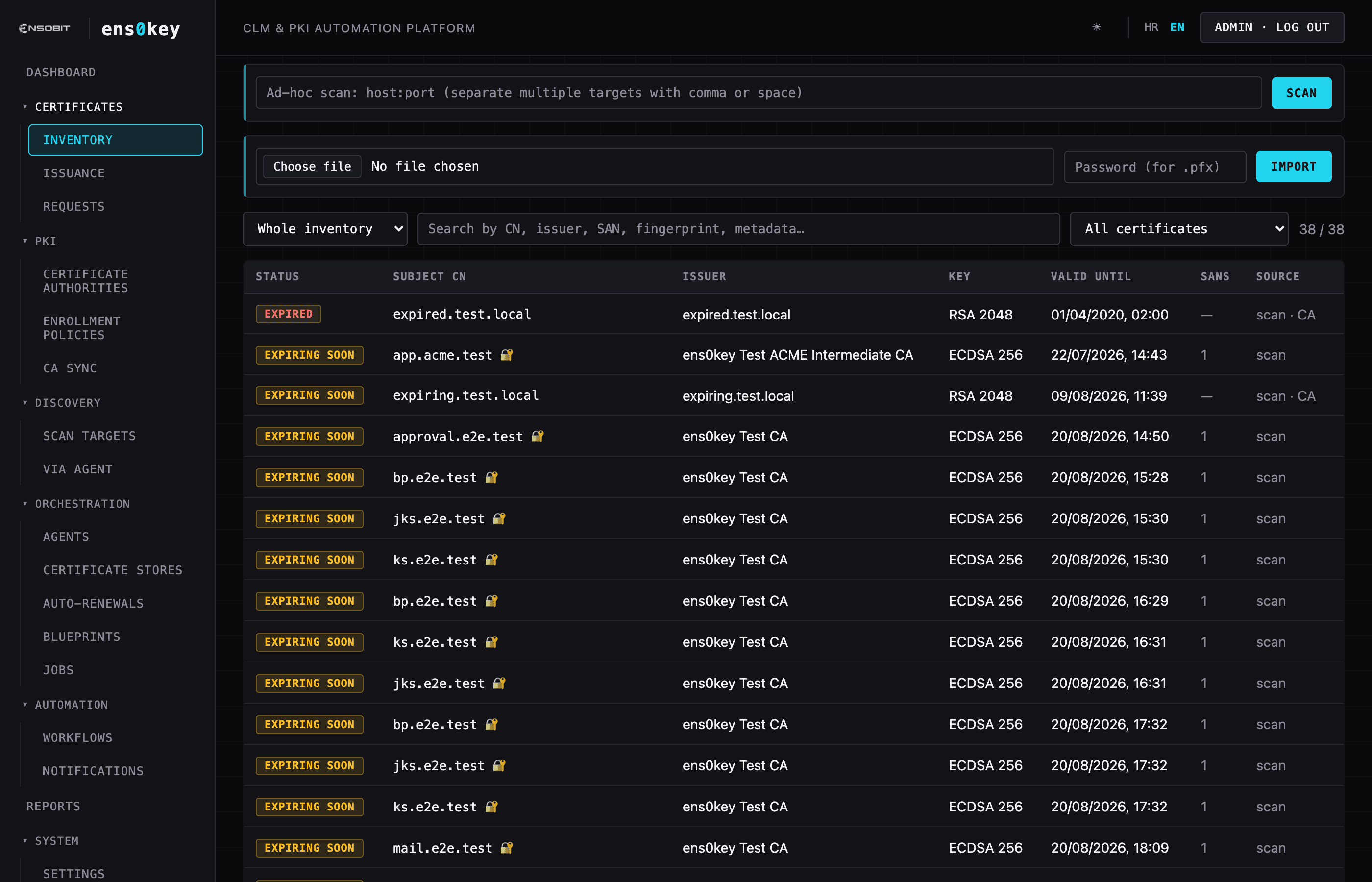
Certificates → Inventory is the central list, deduplicated by SHA-256 fingerprint. Three ways to fill it:
- ▸Ad-hoc scan — type
host:port(or several, comma-separated) and Scan: whatever TLS certificate those endpoints present lands in the inventory, valid or not. - ▸Scheduled discovery — Discovery → Scan targets scans endpoints and CIDR ranges on a schedule; agents can scan networks the server cannot reach.
- ▸Import — load a PEM or PKCS#12 (
.pfx) file; with the password, the private key is stored encrypted in the vault.
Search by CN, issuer, SAN, fingerprint or metadata; filter by status. Save any search as a collection — collections scope alerts, reports and permissions.
Issuing a certificate
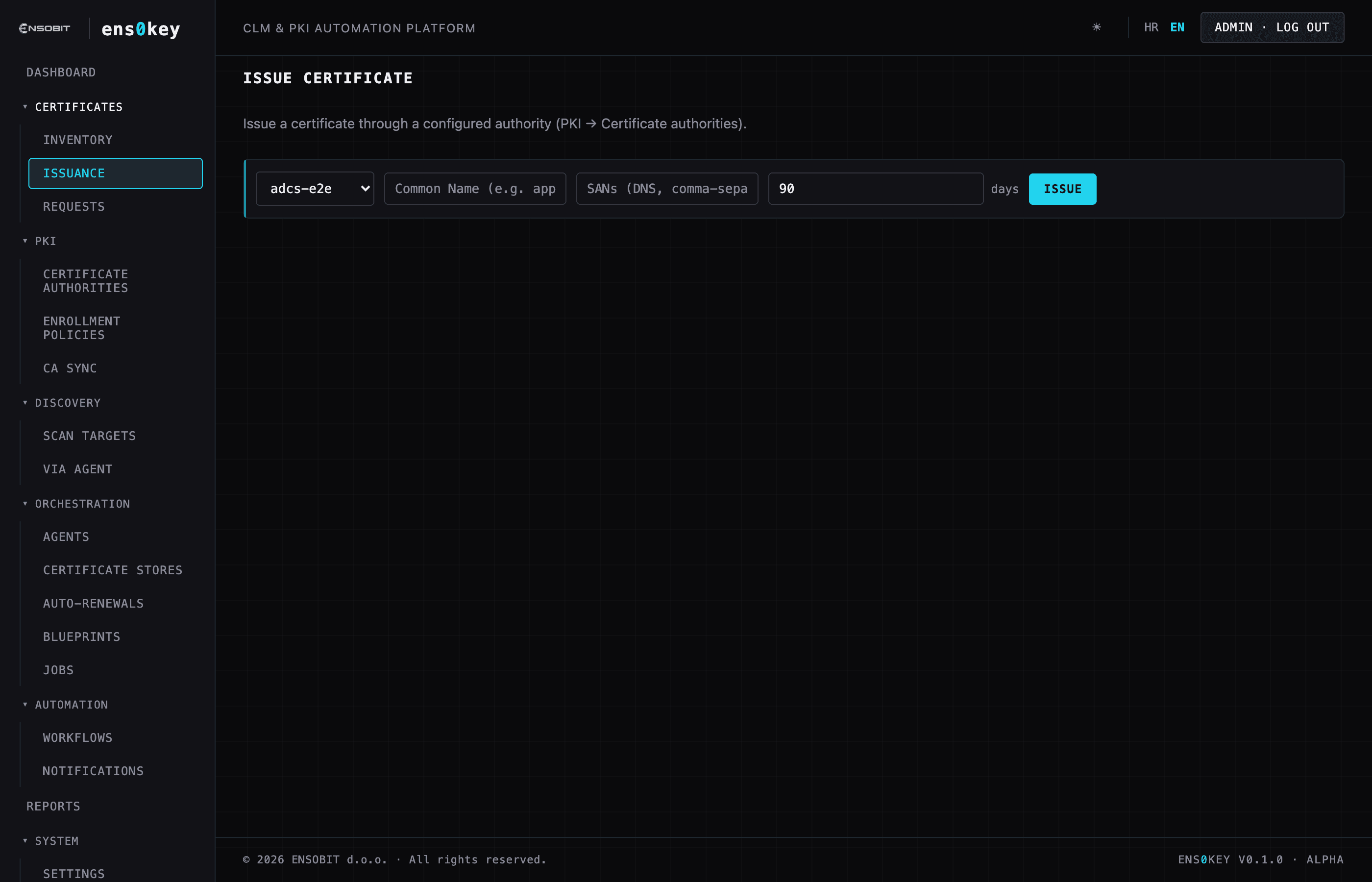
Certificates → Issuance: pick a configured CA, enter the Common Name, SANs and validity, then Issue. The steps stream live (e.g. ACME order → challenge → validation → download). ens0key generates the key and CSR server-side; the key is offered for download exactly once, then kept encrypted in the vault. For a Microsoft ADCS CA a template dropdown appears.
If the CA has an issuance policy, a request that breaks it (wrong CN pattern, SAN outside the allowed domains, validity too long, missing required metadata) is refused with the reason. If approval is enabled, the request waits in the Approvals inbox until an operator approves it.
Renew, renew everywhere, revoke
Open any certificate from the inventory for the detail view:
- ▸Renew issues a fresh certificate with the same subject and SANs.
- ▸Renew everywhere reissues and re-pushes to every recorded location; the old certificate is marked superseded (it stays valid until expiry — renewal is not revocation).
- ▸Revoke revokes it; for the internal CA it is published on the CRL and OCSP immediately.
Serve the UI with your own certificate
Issue a certificate from your internal CA with the CN and SAN set to the server's real FQDN/IP, then pick it under System → GUI certificate. It is served immediately — no restart.